.

OS X 10.5 tweaks |

The much anticipated and over due OS X 10.5 Leopard came out on Friday. I’ve been running it for a couple of days now and have found a couple of tweaks that I thought I would share.

Login Screen
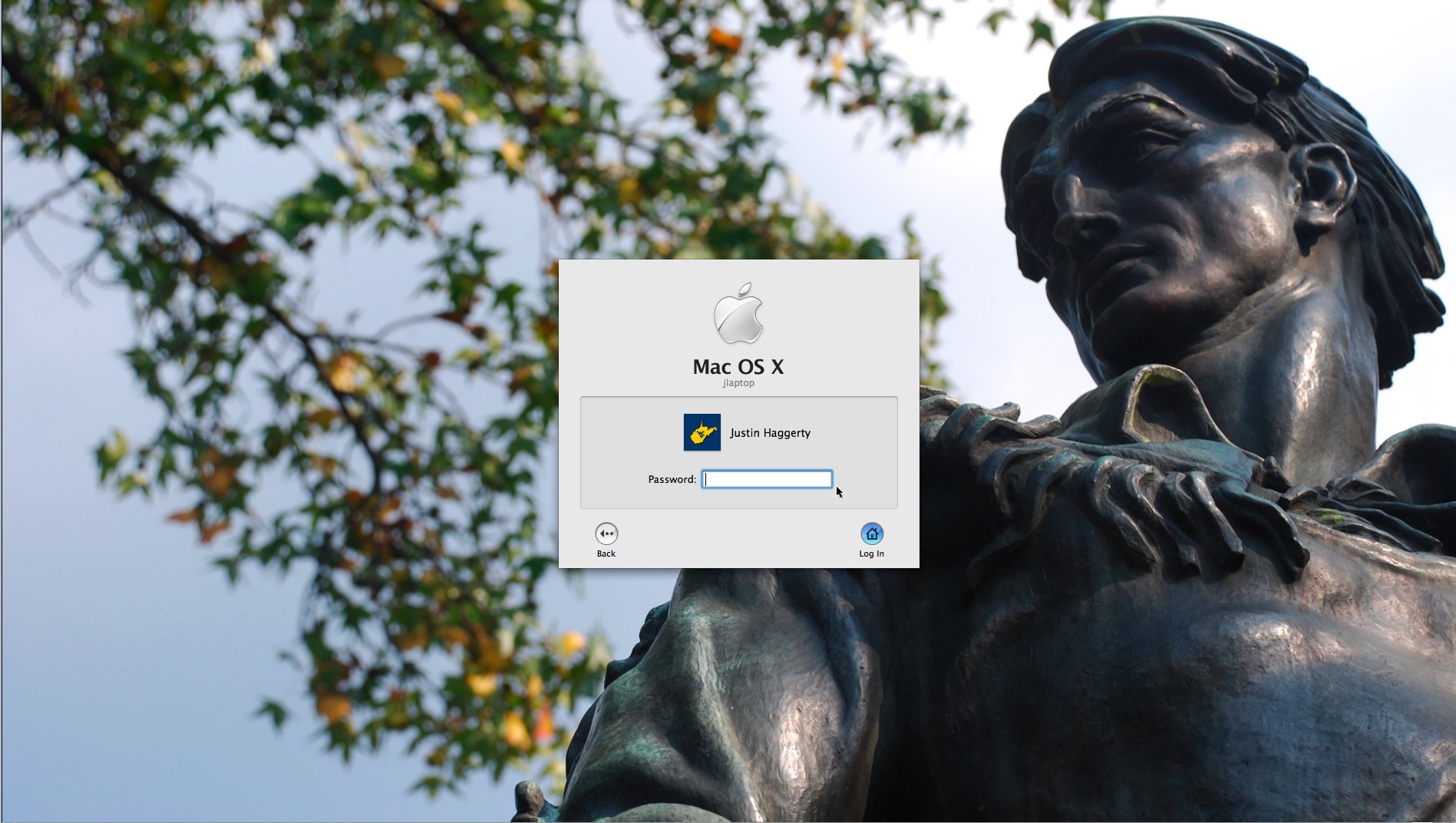
You may have noticed that your login screen has the default star wall paper that comes with 10.5. I didn’t like this generic look, and I wanted to customize it. No problem. Fire up the terminal and do the following (all on one line):

$ sudo cp /path/to/new/picture /System/Library/CoreServices/DefaultDesktop.jpg

Log out, and you will notice that your login background picture is now changed. In addition, all new users created will have this picture set as there default wallpaper. Here is what my login screen now looks like:
login.jpg
Thanks to Jason for the tip on how to get a screen shot of the login screen (VNC is your friend).

Dock
One of the first thing people will surely notice is the new dock in OS X. By default the dock has a bright gray background. Here is a picture of the original doc:
orgdock.jpg
You can change this too. The files that control this are in /System/Library/CoreServices/Dock.app/Contents/Resources. The files you are looking for are:
scurve-l.png
scurve-m.png
scurve-sm.png
scurve-xl.png
You can either update these files to have a new color, or just remove them for a mirror look. I decided to go with removing the files (after backing them up of course). Either way, your changes won’t show up until you fire up the terminal again and run:

$ sudo killall Dock

Here is a picture of my new mirror dock:
mirrordock.jpg


Halo 3 and NAT |

Let me start off by saying that if you have a Xbox 360 with a subscription to Xbox Live, go buy Halo 3 if you haven’t already. If you like 1st person shooter games on a gaming console, this is definitely for you. On to my blog post…

Halo 3 came out late last month. It only took me about a week to beat the solo mission. That left online play to get my money’s worth. The online games are a lot of fun. I find it pretty interesting that I could be playing a game with some one from the other side of the planet. It even shows a world map showing where all of the people signed on are located. Along with the world map it shows the current number of people logged in and looking for games. The smallest I’ve seen this number was are 70,000, and most times it is well over 100,000. This being said, I was having problems finding games. It would take up to 5 minutes before it would find a game to join. I had a feeling something wasn’t right.

I noticed tonight an error message that said my NAT type was wrong. For those that don’t know what NAT is, all you really need to know is that the error message meant something was set wrong on my network. If you are running router on your home network, you’re most likely using NAT. You can get more info about nat at Wikipedia.

The game pointed me to http://www.bungie.net/router/. I went there expecting to find ports that I needed to open on my firewall. I was wrong:

Q: What is NAT and why do I care about it?

A: In extremely simple terms, NAT (Network Address Translation) helps determine how your router interacts with the rest of the internet. If your NAT settings are restrictive, you may have problems connecting to other players. To test your settings, go to the Xbox 360 Dashboard and test your connection. At the bottom of the test results, you will see your ‘NAT Type.’ You want it to say ‘Open’ – if it says ‘Moderate’ or ‘Strict’ you may experience some problems.

If you’re NAT settings display ‘Moderate’ or ‘Strict,’ you should consult your router’s documentation, either online or in the instruction manual.

…

Q: Are there any routers that are recommended for playing Halo 3 online?

A: If you live in North America or certain parts of Europe, look for routers that are specially marked as ‘Xbox LIVE compatible’ or ‘Windows Vista compatible.’ These routers have been tested specifically by the Xbox LIVE team to make sure they work…

Go figure, no real useful information. Tells me to look at my router’s documentation, but doesn’t tell me what to look for. It was just a website trying to sell me a new router that would do less than mine already does (and for probably more money too).

Out of curiosity, I did the test they suggested and sure enough my NAT type was “moderate.” The Xbox dashboard had a “More Info” button next to the NAT type. I was hoping it would tell me the ports I needed to open. Again, I was wrong. More of the same:

This test indicates the type of Network Address Translation (NAT) that your router or gateway is using. Devices that perform strict or moderate NAT can limit the ability of gamers to find each other, participate in sessions, or hear each other on Xbox Live.

You will not receive a result for this test if you are unable to sign in to Xbox Live. If you do not receive a result, test your connection to Xbox Live. If your router or gateway is using a moderate or strict NAT, replace it with an Xbox Live Compatible device. For a listing of devices that have earned this certification, see www.xbox.com.

If you’ve tried these suggestions and your console still does not pass this test, go to www.xbox.com/setup or call Xbox Customer Support.

Again with trying to sell me a new router. This just wasn’t an option for me. Additionally, I had never heard of moderate or strict NAT. I’m not a networking expert, but I do like to think that I know a bit more about them than the average Joe. If not, I feel sorry for my employer.

After a couple more minutes of google searching I found this Microsoft Knowledge Base article:
http://support.microsoft.com/kb/908874

It had everything I was looking for. TCP and UDP ports 3074 and UDP 88 needed to be opened. I already had TCP 3074 opened, but the others were new to me. After opening the ports I reran the test and my NAT type was now listed as “Open.” I fired up Halo 3, got online, and was in a game in less than a minute.

Moral of the story is. The Xbox is great but you have to watch what they try to tell/sell you. Apparently Bill Gates isn’t rich enough yet.


Such Insight |

Wow, just wow.


Almost Game Day |

We’re less than a week until the start of WVU’s 2007 football season! I really can’t wait. Kick off is Saturday at 3:30 pm. The weather is supposed to be in the 80’s and only a 10% chance of rain. Sounds like a perfect day for the start of football.

The weather will be a welcome change. The last two time’s I’ve watched the Mountaineers at home it has snowed.

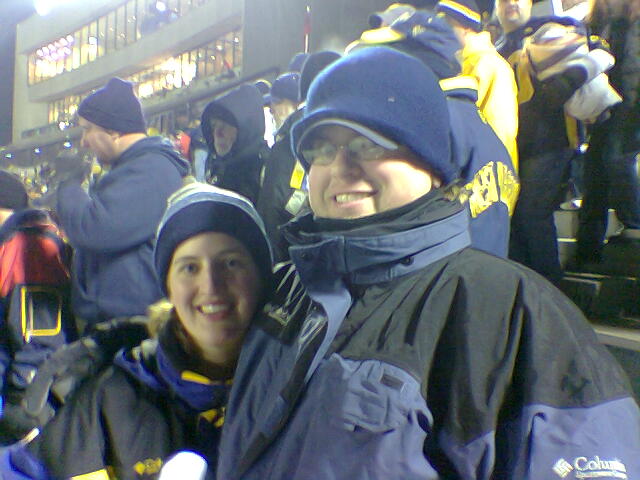
This is Treah and I after the 2006 WVU vs Rutgers game, this was the home closer last season. I think Doug took it with his cellphone. We beat Rutgers in triple overtime even with our starting QB, Pat White, out (injured) for the entire game. I don’t remember how cold it was that night, but It was cold.

image039.jpg

The last time I saw the Mountaineers was at the 2007 Spring Game. You’d think spring games would be warm, you might need a sweatshirt. Nope, not at WVU. It turned out to be a blizzard. The cold weather at the Rutgers game was to be expected, it was a night game in December. However, the spring game this year was on April 7th. Go figure. Here’s a picture of Dirty Al, Al, Dick, and James (left to right) at the tailgate.

springgame.jpg

Here’s hoping Saturday’s weather is better. Let’s Go Mountaineers!!


Laptop Quick Fix |

I’ve had my Dell Inspiron 8500 for over 4 years now. It’s been pretty solid, but it is starting to show it’s age. Saturday night I booted it up, I could tell that it had booted successfully, but the screen never fully turned on. It faded from white to gray and back, over and over. I went to another computer on my network and was able to ssh into my laptop, so I knew it was up and running.

I got on google in hopes that there was an easy fix and that I wouldn’t have to spend a lot to do it. I found Shandy’s Blog. He had the same problem. Apparently this is a fairly common problem caused by the button that detects if the laptop’s screen is open or closed. It will get stuck in the closed position.

Shandy gave a free fix. Pop the top of the keyboard off, re-seat the button, put it all back together. This is easier than it sounds. It doesn’t even require a screw driver. It took about 5 minutes to complete the entire process and I was back up and running again.

I was kind of wishing I had taken some pictures to document the process. Well, I got a 2nd chance today. When I got home from work today the button was stuck in the closed position again. I took pictures this time.

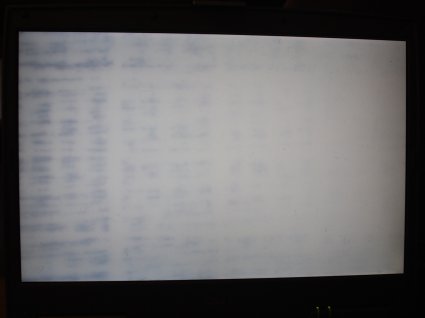
Here’s a picture of what the screwed up screen looks like, white with black and gray streaks. The streaks move, sometimes they disappear and I only have a white screen. It varies from being super bright to dim.

01-white-screen.jpg

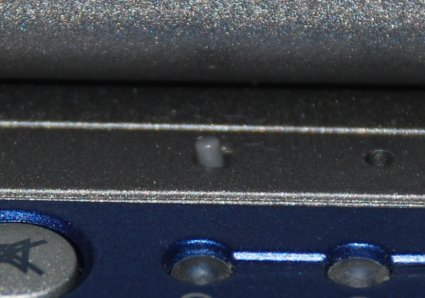
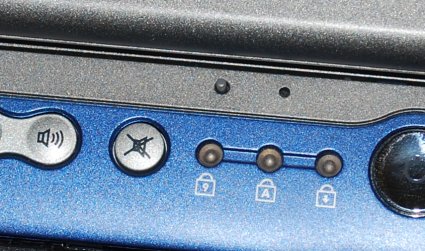
This is a picture of the button. Notice how it’s sticking out at an angle. You’ll see why next.

02-badswitch.jpg

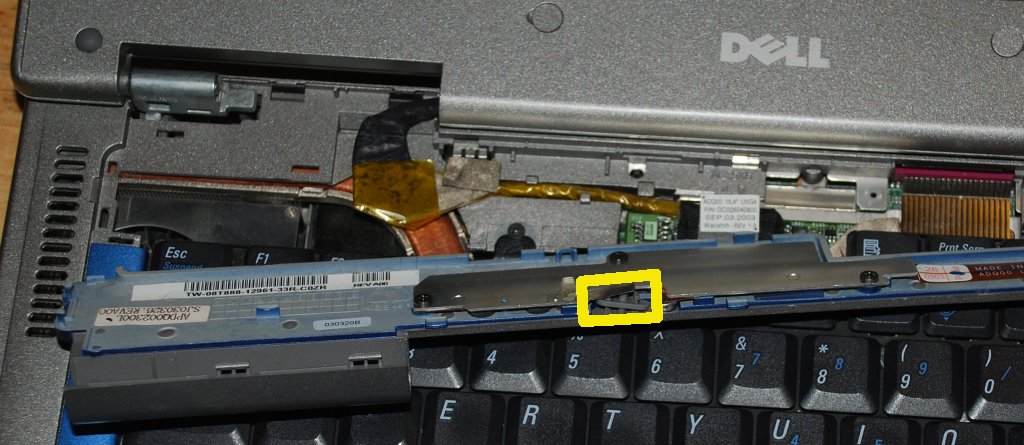
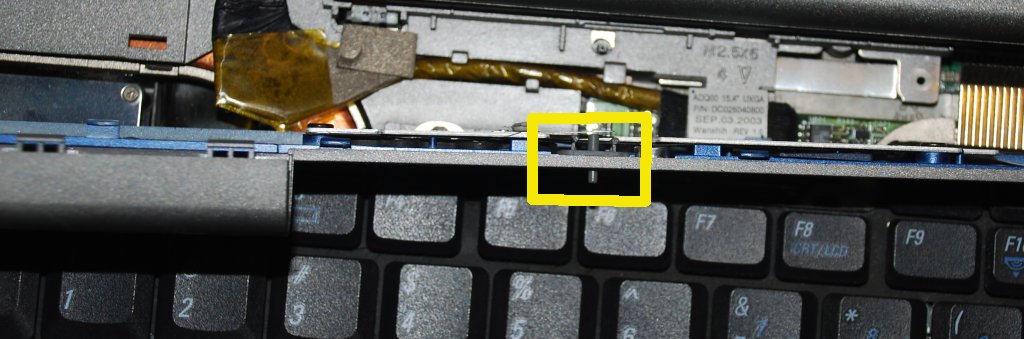
After popping off the blue strip of buttons at the top of the keyboard, I found out why the button was stuck. The yellow square shows where the switch is. Click on the image for a bigger version.

04-badswitch.jpg

Here is the switch after re-seating it.

05-fixedswitch.jpg

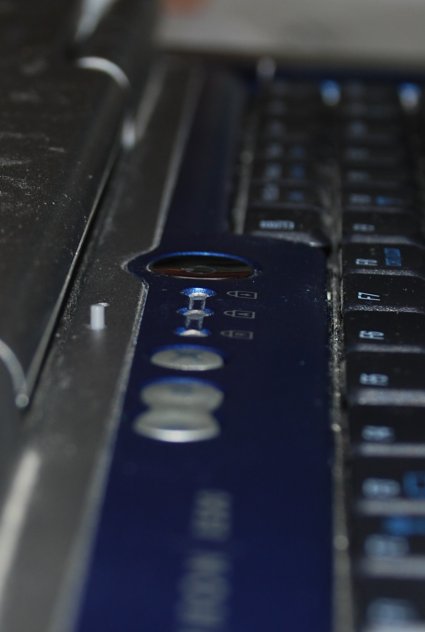
These are two pictures of it reassembled. Notice the button is now straight, and is sticking out further.

06-fixedswitch.jpg

07-fixedswitch.jpg

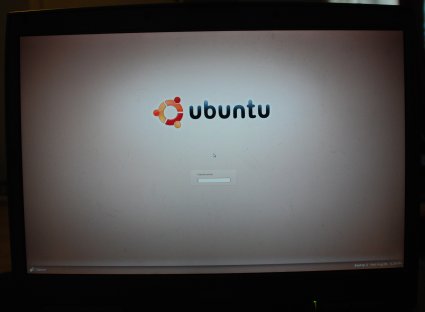
Success! Back at the login screen.
08-ubuntuscreen.jpg


Calendar
October 2026
S M T W T F S
« Jan    
 123
45678910
11121314151617
18192021222324
25262728293031
Categories
Archive

.